
Many Windows 11 users want to move partition locations. For example, if the EFI/Recovery partition is in the middle of a disk, some people want to move the EFI/Recovery partition to the front or end of the disk. If you cannot extend the C drive after shrinking D in Disk Management, you need to move partition D to the right and make the Unallocated space contiguous to the C drive. Because no native tool has the ability to move partitions in Windows 11, you must run a third-party tool. This article introduces how to move a Windows 11 partition to the left or right, to the front or end of a disk, and how to move a partition to another disk.
How to Move a Partition to the Left or Right in Windows 11
There are two points you should know before starting:
- There is a potential risk of system damage and data loss when moving partitions with third-party software. Always back up your computer in advance and run a safe partition tool. Better than other tools, NIUBI Partition Editor features powerful 1-Second Rollback, Virtual Mode, Hot-Clone and Cancel-at-will technologies to protect your system and data.
- No software can move a partition across another one. For example, you cannot move the E drive directly to the middle of the C and D drives. In a Windows 11 computer, you can move a partition location using adjacent Unallocated space.
A typical example of why you might need to move a partition in a Windows 11 computer is when you cannot extend the C drive after shrinking D. The Windows Disk Management tool can only extend a partition when there is adjacent Unallocated space on the right, but it cannot generate such required Unallocated space when shrinking a partition. For example, after shrinking the D or E drive with Disk Management, the Unallocated space is always non-adjacent to the C drive. Therefore, the "Extend Volume" option is grayed out. Before extending the C drive volume, you must move partition D to the right and move the Unallocated space to the left.
NIUBI Partition Editor helps you move partitions in a Windows 11 laptop, desktop, or tablet safely and easily. It even provides a free edition for Windows 11/10/8/7/Vista/XP home computer users, which is 100% clean without any bundled plugins.
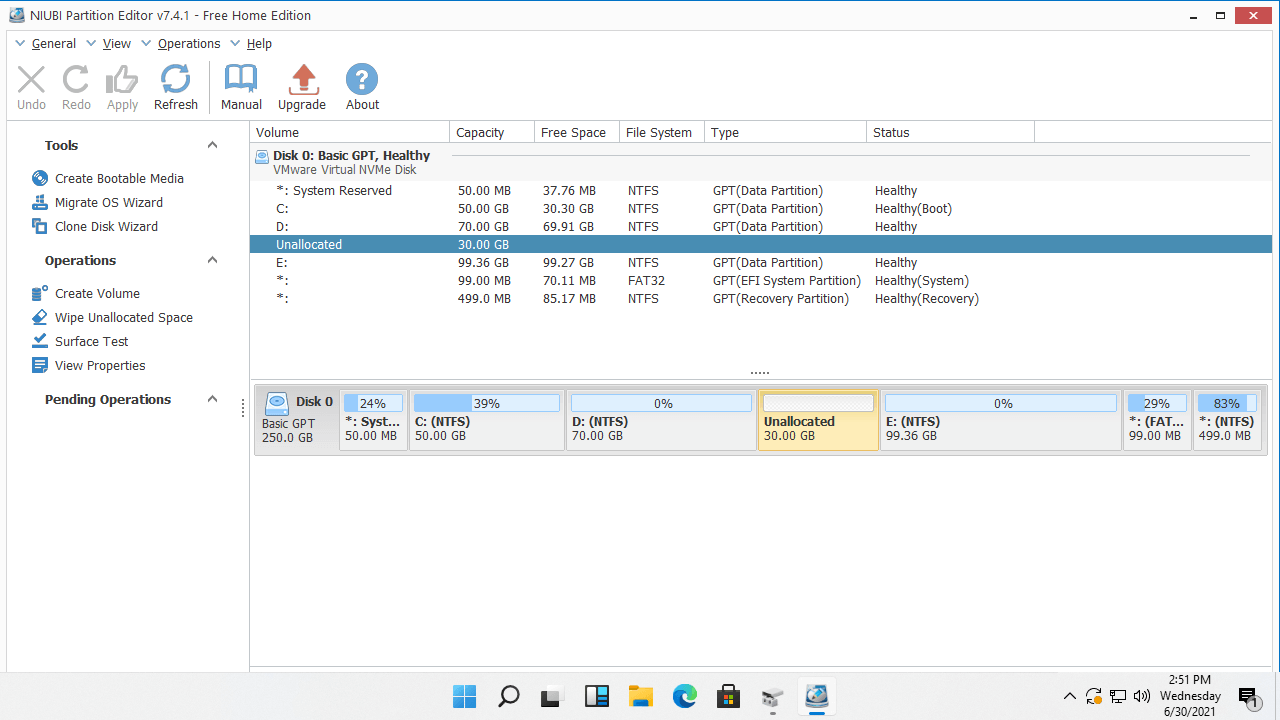
Download this free partition manager, and you will see all storage devices with their partition structures and other information on the main window. In the example below, there is 30GB of Unallocated space, which was shrunk from the D drive.
Steps to move partition D to the right in Windows 11/10/8/7:
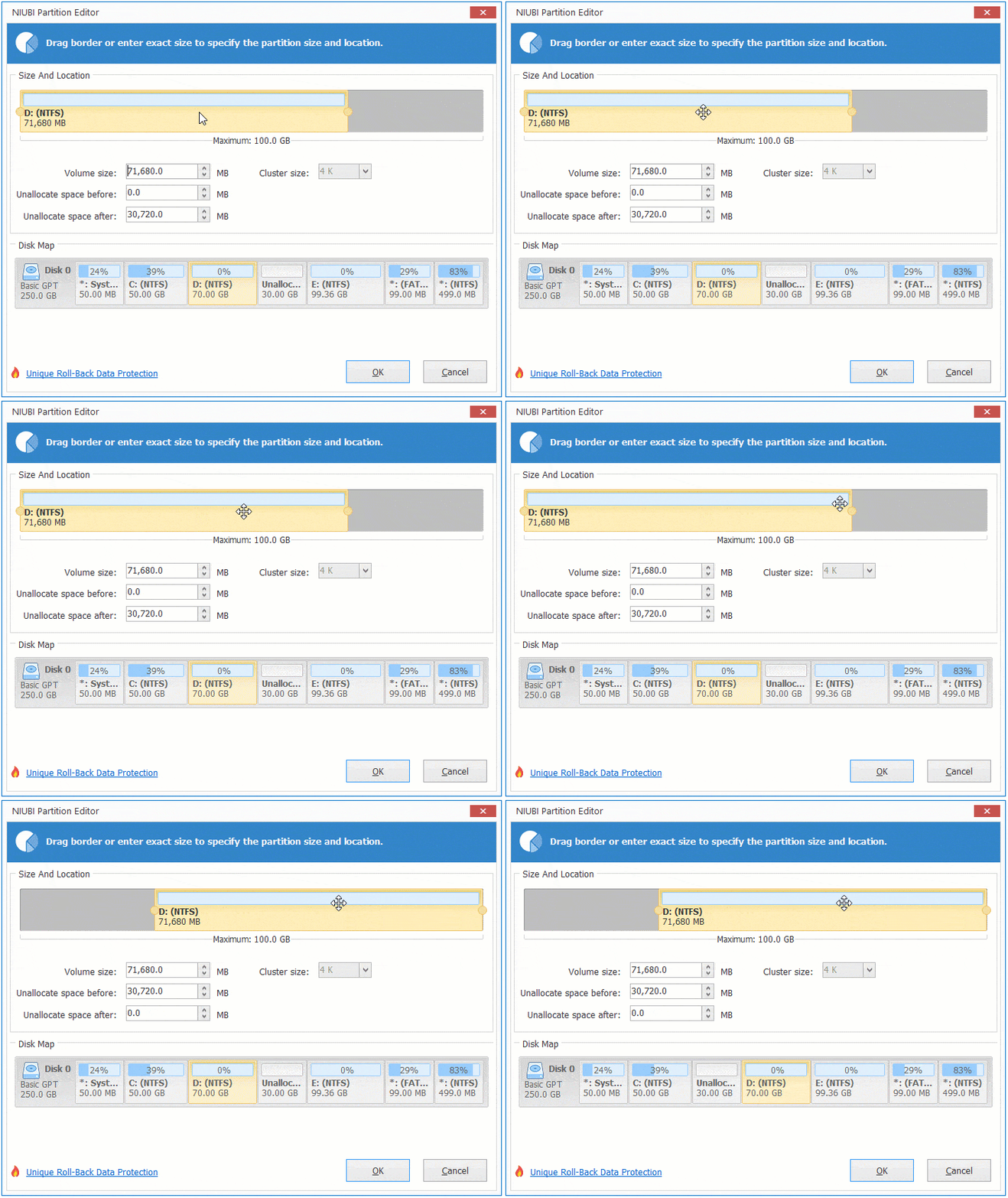
- Right-click the D: drive and select the "Resize/Move Volume" option.
- In the pop-up window, put the mouse pointer in the middle of the D drive and drag it rightward.
![Move D drive]()
- Click OK to go back to the main window, then click Apply on the top left to take effect.
If you want to shrink the D drive and add the Unallocated space to partition E on the right, you can combine them directly without moving partition E to the left. To do this, right-click E and select the "Resize/Move Volume" option, then drag the left border leftward in the pop-up window.

If you want to merge this Unallocated space into a non-adjacent partition (such as a 99MB EFI partition), you need to move partition E to the left to make the Unallocated space contiguous.
Steps to move partition E to the left in a Windows 11 computer:
- Right-click the E: drive and select the "Resize/Move Volume" option.
- In the pop-up window, put the mouse pointer in the middle of the E drive and drag it leftward.
- Click OK to go back to the main window, then click Apply on the top left to take effect.
How to Move a Volume to the Front or End of a Disk
On some computers, the EFI and Recovery partitions are not placed conventionally before the C drive or at the end of the disk. Instead, they are located between the C drive and other data partitions. Because Windows Disk Management cannot resize or move EFI/Recovery partitions, some users wonder if it is possible to move the EFI partition to the front of the disk or move the Recovery partition to the end of disk. Regarding this issue, there are two points you should understand:
- No software can move a partition across another one directly. Instead, a partition is moved by exchanging its position with adjacent Unallocated space.
- For NIUBI Partition Editor, it does not matter whether the EFI or Recovery partition is at the front, in the middle, or at the end of the disk, because it can resize and move these special partitions just like normal partitions.
If you must move the EFI or Recovery partition to the front or end of the disk, you can do it this way: shrink the system partition at the front to generate Unallocated space on the left, or shrink a data partition at the end to generate Unallocated space on the right. Finally, copy the EFI or Recovery partition to this new Unallocated space. The detailed steps are similar to the next section; the only difference is whether you copy the volume to Unallocated space on the same disk or a different disk.
How to Move a Partition to Another Disk in Windows 11
- Shrink a partition on the target disk to make Unallocated space; this space should be larger than the used space of the partition you want to move.
- Right-click the partition to be moved and select the "Copy Volume" option.
- Select the Unallocated space on the target disk in the pop-up window.
- Drag either border or the middle position to edit the partition size and location.
- Right-click the partition that was moved (such as D:) and select "Change Drive Letter"; select any letter except D in the pop-up window.
- Right-click the new partition on the target disk and select "Change Drive Letter" again; assign it the original drive letter (such as D:).
- Click Apply on the top left in the main window to take effect.
If you just want to move the partition and its content, and there is no drive letter or the drive letter is not important, you can ignore steps 5 and 6.
Watch the video to see how to move a Windows 11 partition to another disk:
Besides moving partitions in a Windows 11/10/8/7/Vista/XP computer, NIUBI Partition Editor helps you perform many other disk partition management operations, such as shrinking, extending, merging, converting, defragging, hiding, and wiping partitions, as well as scanning for bad sectors.
 © 2009 - NIUBI Technology All Rights Reserved. |