
Besides creating a new volume, Unallocated space can be combined with an allocated partition. If you do not want to use any software, Windows 11 native Disk Management can help you under certain conditions. It can only merge Unallocated space to the left contiguous partition. In addition, this partition must be formatted with the NTFS file system. To merge Unallocated space into a non-adjacent partition, you must run disk partition software to move Unallocated space in advance. This article introduces how to merge Unallocated space in Windows 11 with the native tool, and how to move Unallocated space and add it to the C drive with a free partition editor.
How to Merge Unallocated Space to a Partition Without Software
As mentioned above, Disk Management can only merge Unallocated space to the left adjacent partition. If you do not want to use any third-party software, check if this partition is NTFS and if the Unallocated space is adjacent and on the right of this partition. If yes, follow the steps below. Otherwise, jump to the next section.
Steps to merge Unallocated space in Windows 11 with the Disk Management tool:
- Press the Windows + X keys and click Disk Management in the list.
- Right-click the NTFS partition with adjacent Unallocated space on the right, then click the "Extend Volume" option.
- Simply click Next until Finish in the pop-up "Extend Volume Wizard".
If you want to merge Unallocated space into a FAT32 partition, combine Unallocated space to the right adjacent partition, or merge Unallocated space into a non-adjacent partition, no native tools can help you, run NIUBI Partition Editor instead. It has a free edition for Windows 11/10/8/7/Vista/XP home computer users. Better than other tools, it has powerful 1-Second Rollback, Virtual Mode, Cancel-at-will, and Hot Clone technologies to protect your system and data.
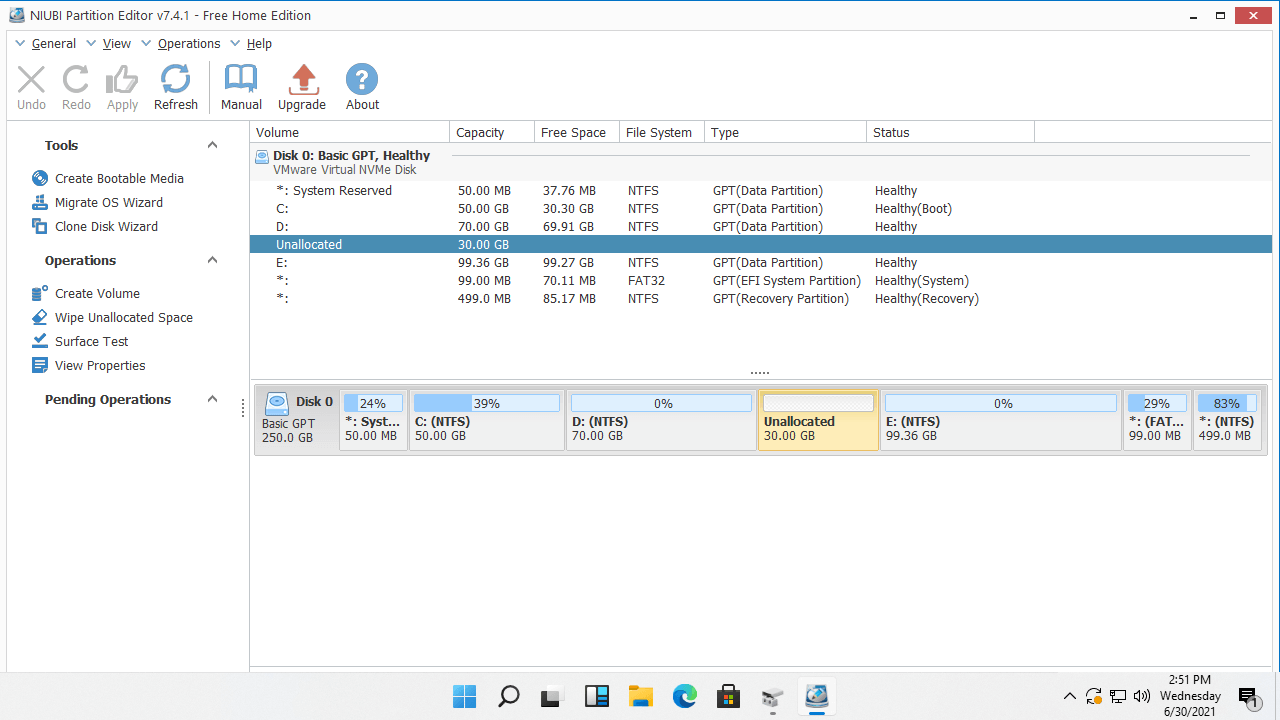
Download this tool, and you will see all disk partitions with their layouts and other information on the main window. In this example, there is 30GB of Unallocated space between the D: and E: drives.
How to merge Unallocated space in Windows 11 with NIUBI Partition Editor:
- Right-click this partition (here it is E:) and select the Resize/Move Volume option.
- Drag the left border leftward to combine the adjacent Unallocated space in the pop-up window.
- Click Apply on the top left to take effect.

If you want to combine Unallocated space into the left partition, right-click the D: drive in NIUBI Partition Editor and select the "Resize/Move Volume" option. In the pop-up window, drag the right border rightward.
If you want to merge Unallocated space to the non-adjacent partition C, you should move Unallocated space to the left in advance.
How to Move Unallocated Space in Windows 11
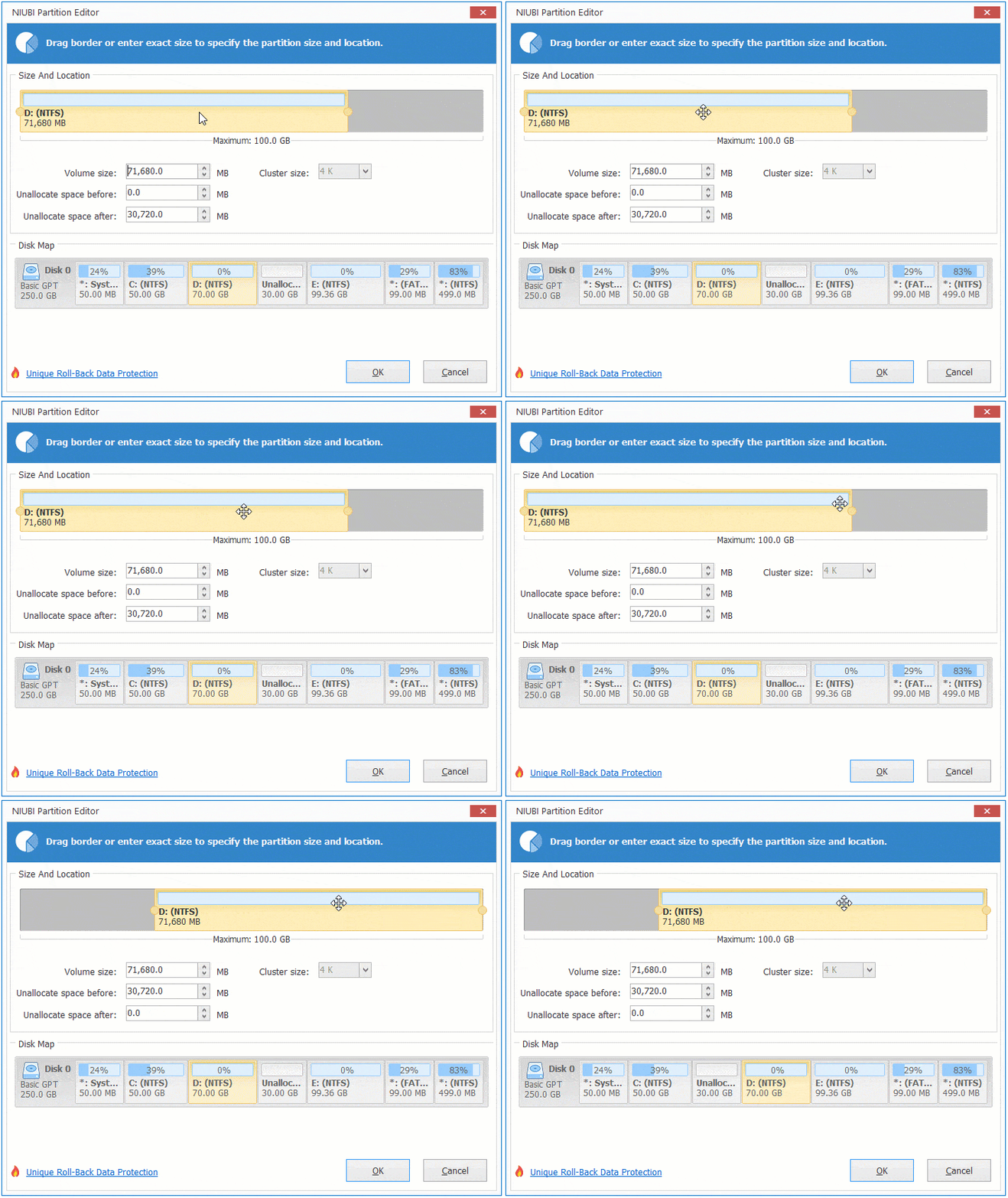
It is also very easy to move Unallocated space in a Windows 11 laptop, desktop, or tablet; you just need to drag and drop on the disk map of NIUBI. The difference is, do not drag the border toward the other side. Instead, put the mouse pointer in the middle of this partition and drag it to the other side. If you drag either border, you can only shrink or extend this partition.
Steps to move Unallocated space next to the C drive in Windows 11 (to the left):
- Right-click the middle partition D and select the "Resize/Move Volume" option.
- Drag the middle of the D drive rightward in the pop-up window, then the Unallocated space will be moved to the left.
![Move D drive]()
- Click Apply to take effect.
How to Merge Unallocated Space to the C Drive in Windows 11
After moving Unallocated space to the left, you can extend the C drive easily with either Disk Management or NIUBI Partition Editor.
How to add Unallocated space to the C drive in Windows 11 with NIUBI:
- Right-click the C: drive and select the "Resize/Move Volume" option.
- Drag the right border rightward in the pop-up window, then the Unallocated space will be combined into the C: drive.
![Extend C drive]()
- Click Apply to take effect.

Besides moving and merging Unallocated space in a Windows 11/10/8/7/Vista/XP computer, NIUBI Partition Editor helps you perform many other disk partition management operations, such as shrinking, extending, cloning, converting, defragging, hiding, wiping partitions, and scanning for bad sectors.
 © 2009 - NIUBI Technology All Rights Reserved. |