
As in previous versions, Windows 11 computers also run low on disk space on the C drive. Many people ask whether it is possible to extend a partition in Windows 11 without losing data. Nobody likes to reinstall the operating system and all programs. The answer is yes. To extend a volume in a Windows 11 laptop, desktop, or tablet, you can use either the Windows native Disk Management tool or third-party software. This article introduces 3 ways to extend a volume in a Windows 11 computer using both kinds of tools. Select the corresponding method according to your own disk partition configuration.
How to Extend a Volume in Windows 11 via Disk Management
The first method has severe limitations. This method is only used by users who do not want to use third-party software and whose disk partition configuration meets the requirements below:
- There is a contiguous partition on the right of the drive that you want to extend.
- This contiguous partition must be deleted in advance to get Unallocated space.
- The partition to be extended must be formatted with the NTFS file system.
- The partitions to be deleted and extended must be the same Primary or Logical drive type.
Most computer users want to extend system partition C. In most Windows 11 computers, the system disk is GPT and all partitions are Primary; the C drive is also formatted with NTFS. Consequently, the key requirement is that you must delete the D (or E) drive to get adjacent Unallocated space on the right side of the C drive.
If you do not want to delete the D drive, or if there are no other volumes on the same disk, jump to the next section.
How to extend a partition in Windows 11 without software:
- Right-click the Windows logo at the bottom of your screen and select Disk Management in the list.
- Right-click the right adjacent partition (such as D:) and select the Delete Volume option.
- Right-click the left adjacent partition (such as C:) and select the Extend Volume option, then simply click Next until Finish in the next dialog box.
Together with "Extend Volume", there is another "Shrink Volume" function in Disk Management. Some people may ask why not shrink D to expand the C drive. This is because the Unallocated space obtained from the "Shrink Volume" function cannot be used by "Extend Volume". Learn why you cannot extend a volume in Windows 11 with Disk Management after shrinking a partition.
How to Extend a Windows 11 Volume with Free Partition Software
With safe partition software, you can shrink a partition and make Unallocated space on the left or right. Therefore, either contiguous partition can be extended easily. If you need to extend a non-adjacent partition on the same disk, NIUBI Partition Editor can move Unallocated space to be adjacent before extending. With this tool, you can extend a volume in a Windows 11 computer without deleting a partition or losing data. The operating system, programs, and all the rest (except size) remain the same as before.
Compared to other tools, NIUBI Partition Editor has powerful Virtual Mode, Cancel-at-will, 1-Second Rollback, and Hot Clone technologies to protect your system and data. It provides a free edition for Windows 11/10/8/7/Vista/XP home computer users. To shrink and extend a partition in a Windows 11 computer, you just need to click, drag, and drop on the disk map.
Download this tool, and you will see all physical and virtual disks with their partition layouts and detailed information about each partition on the main window.
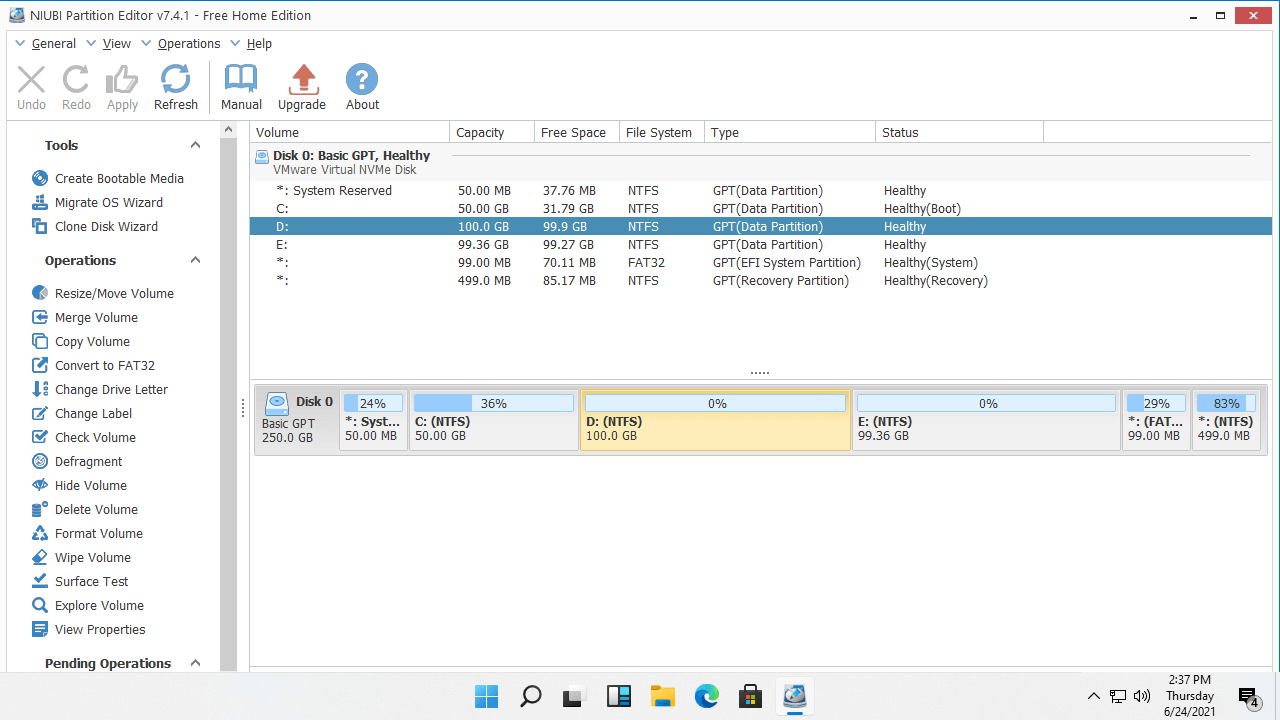
How to extend a volume in Windows 11 without losing data:
- Right-click a partition (such as D:) and select the "Resize/Move Volume" option. In the pop-up window, drag either border toward the other one. The difference is, if you drag the left border rightward, Unallocated space will be created on the left.
- If you want to extend the C drive, make Unallocated space on the left in step 1. Right-click the C drive and run "Resize/Move Volume" again, then drag the right border rightward to combine this Unallocated space.
- Click Apply on the top left to take effect.
If you want to shrink the E drive to extend the non-adjacent partition C, there is an additional step to move partition D to the right and make Unallocated space next to the C drive.
Watch the video to see how to extend a partition in Windows 11 by shrinking another volume:
The steps to shrink and extend a volume in a Windows 11 computer are the same, whether you use an SSD, a mechanical HDD, any type of hardware RAID array, or even run Windows 11 in a VMware/Hyper-V virtual machine.
How to Extend a Windows 11 Partition with a Larger Disk
If there is no other partition on the same disk, you cannot extend a partition by shrinking a volume on another separate disk because the size of a disk is fixed. In that case, you can clone the disk to a larger one and extend the partition with extra disk space. Follow the steps in the video:
Watch the video to see how to extend a partition in Windows 11 with a larger disk:
If there are data partitions on the disk but they are full, besides cloning the disk, you can also move a partition to another disk. Delete it and then add its space to the C drive.
Besides shrinking and extending volumes in a Windows 11/10/8/7/Vista/XP computer, NIUBI Partition Editor helps you perform many other disk partition management operations, such as moving, merging, hiding, converting, defragging, wiping, scanning for bad sectors, and optimizing file systems.
 © 2009 - NIUBI Technology All Rights Reserved. |