
What will you do if you forget to create more partitions while installing Windows 11? You might reinstall the operating system if nothing is saved on the computer. However, nobody likes to reinstall the OS and programs if the computer was purchased from an OEM manufacturer or if it has been running for a period of time. Is it possible to shrink a Windows 11 partition without losing data to get Unallocated space? The answer is yes. This article introduces 2 free tools to shrink a volume in a Windows 11 laptop, desktop, or tablet.
How to Shrink a Partition in Windows 11 Without Any Software
As with previous Windows 10, the latest Windows 11 has a native Disk Management tool. Besides the basic ability to create, delete, and format partitions, Disk Management can help you change partition sizes without losing data (in most cases). However, because of many restrictions, Disk Management is not the best tool to shrink and extend a Windows 11 partition.
Steps to shrink a volume in Windows 11 with the Disk Management tool:
- Press the Windows + X keys together and click Disk Management in the list.
- Right-click the C: drive or another NTFS partition and select Shrink Volume.
- Enter an amount of space and click the Shrink button. If you do not enter an amount, all available free space will be used by default.
It is easy to shrink a Windows 11 partition with Disk Management, but you may encounter issues if you have run the computer for a long time.
Limitations of Shrinking Windows 11 Volumes with Native Tools
First of all, you should know that Disk Management and another native DiskPart cmd tool can only shrink NTFS partitions. FAT32 and any other types of partitions are not supported. Other limitations of shrinking a Windows 11 partition with native tools include:
- It cannot shrink a partition beyond the point where any unmovable files are located.
- It can only shrink a partition leftward and make Unallocated space on the right.
In short, if you just want to shrink an NTFS partition to create a new volume, you can try Windows Disk Management. If you want to shrink a FAT32 partition, if you want to shrink a volume to extend another one, or if you cannot shrink a volume in Windows 11, you must run a third-party tool.
How to Shrink a Windows 11 Volume with a Free Partition Editor
There is a lot of disk partition software for Windows computers in the market, but NIUBI Partition Editor is recommended by many editors and users. Compared to other tools, it features unique Hot-Clone, 1-Second Rollback, Virtual Mode, and Cancel-at-will technologies to protect your system and data. In addition, because of its special file-moving algorithm, it is much faster. To shrink a partition in a Windows 11 computer, you just need to click, drag, and drop on the disk map.
Download this free partition software, and you will see all physical and virtual disks with their partition layouts and detailed information about each partition on the main window. Right-click each partition or the leftmost area of a disk, and you will see the available operations.
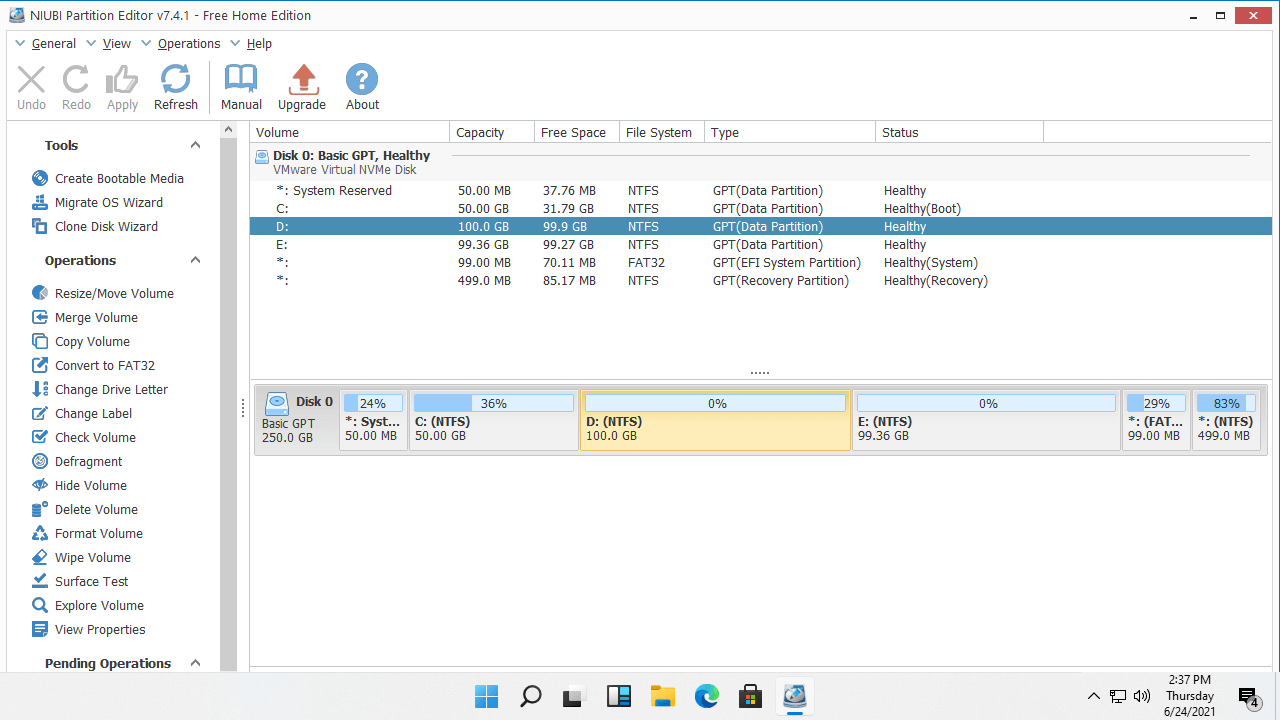
How to shrink a partition in Windows 11/10/8/7 with NIUBI Partition Editor:
Right-click any NTFS or FAT32 partition and select "Resize/Move Volume". You have 2 options in the pop-up window.
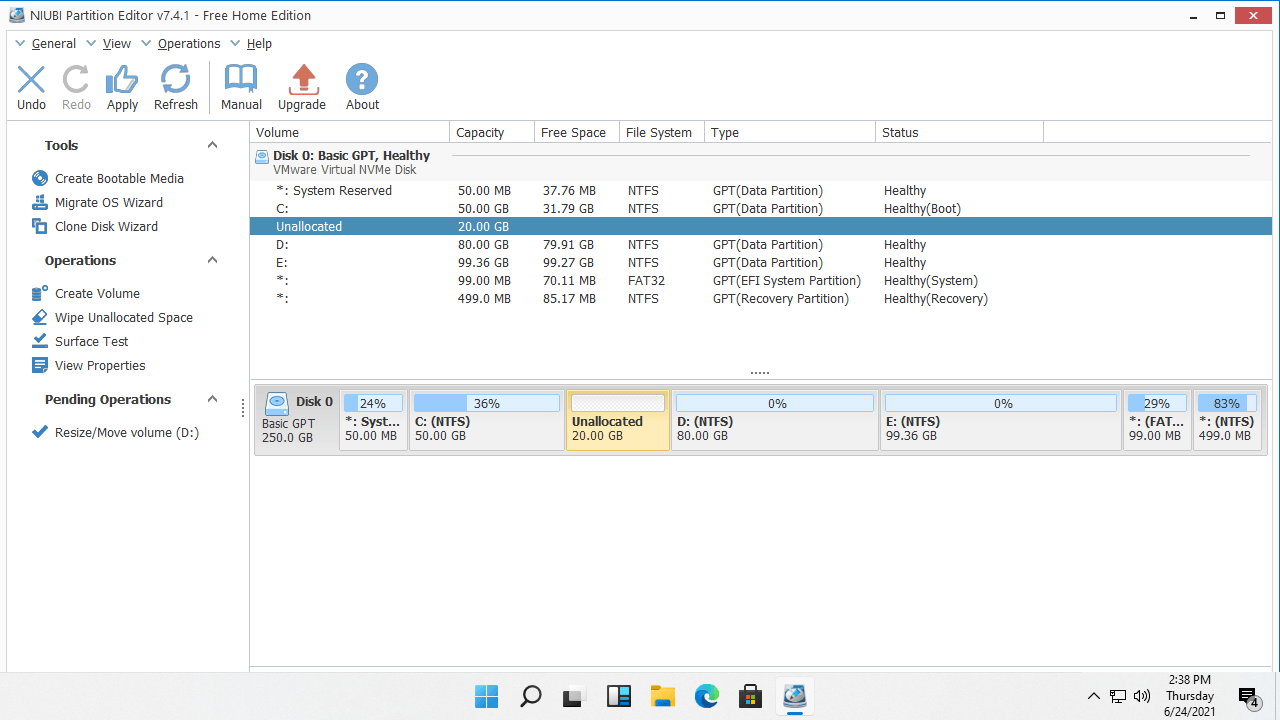
Option 1: If you drag the left border rightward, or enter an amount of space in the box for "Unallocated space before":

This partition will be shrunk rightward, and Unallocated space will be created on the left side.
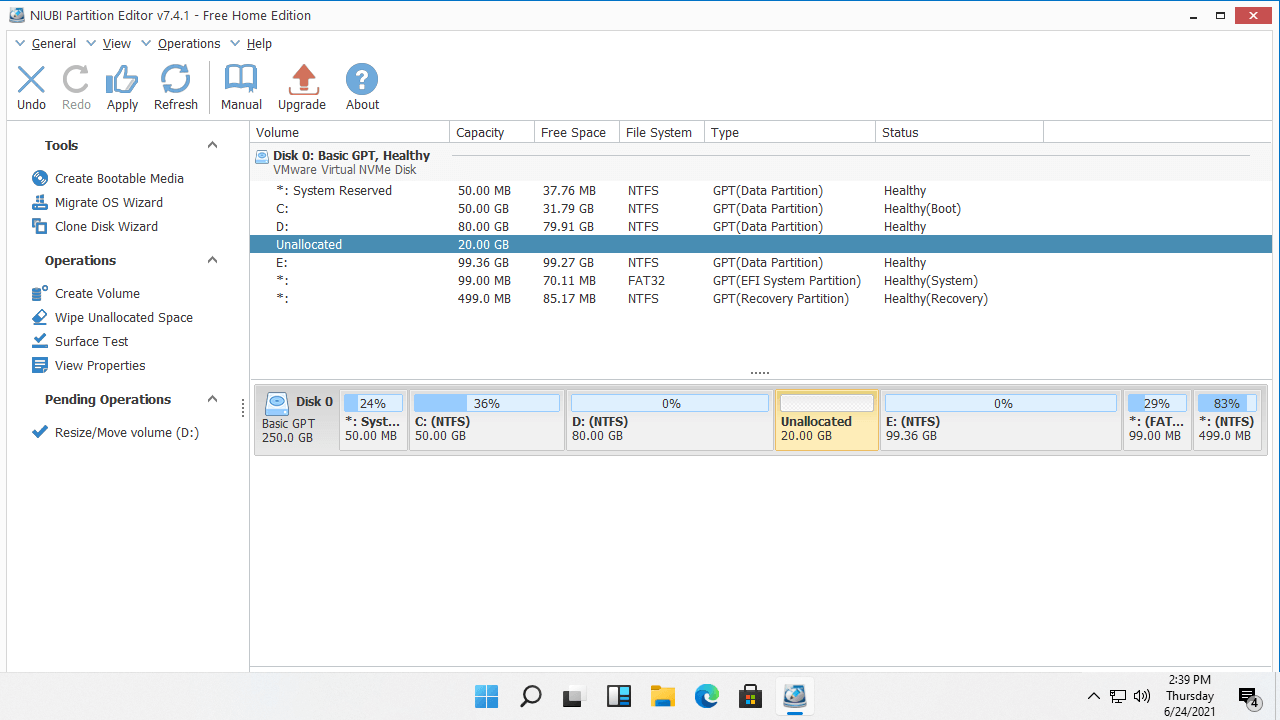
Option 2: If you drag the right border leftward, or enter an amount of space in the box for "Unallocated space after":

This partition will be shrunk leftward, and Unallocated space will be created on the right side.
If you want to create more partitions in a Windows 11 laptop, desktop, or tablet, simply right-click the Unallocated space and select "Create Volume". If you want to extend a partition by shrinking another volume in Windows 11/10/8/7, it is very easy, too.
If you want to extend the C drive by shrinking D, follow Option 1 to make Unallocated space on the left. Then, right-click the C: drive and run "Resize/Move Volume" again. Drag the right border rightward to combine this Unallocated space in the pop-up window.
Watch the video to see how to shrink a volume in a Windows 11 computer without losing data:
As professional disk partition software, NIUBI Partition Editor helps you perform many other disk partition management operations, such as extending, moving, cloning, converting, defragging, hiding, and wiping partitions, as well as optimizing file systems. It provides a free edition for Windows 11/10/8/7/Vista/XP home computers. The free edition is 100% clean without any bundled plugins and does not disable functions like other tools.
 © 2009 - NIUBI Technology All Rights Reserved. |