
If there is only a C drive (except for reserved small partitions) on the system disk, you had better shrink it to create more partitions. For example, you should have at least one separate partition for programs. Do not throw everything into the C drive. Otherwise, your computer will run slower, and the C drive will become full very quickly. To shrink the C drive in a Windows 11 desktop, laptop, or tablet, there are 2 options using native Disk Management and third-party software. This article introduces how to shrink the C drive in a Windows 11 computer without losing data or programs.
How to Shrink the C Drive in Windows 11 via Disk Management
Since Windows 7, new "Shrink Volume" and "Extend Volume" functions have been added to Disk Management. Windows 11 has the same functions without modification. It is easy to shrink the C drive volume in Windows 11 via Disk Management, but in some cases, this native tool does not work. This will be explained in the next section.
How to shrink the C drive in Windows 11 with Disk Management:
- Press Windows + X together on your keyboard, and then you will see Disk Management in the list.
- Right-click the C: drive and select "Shrink Volume".
- All available space will be given by default; enter a smaller amount if you want to keep more free space in the C drive.
- Finally, click Shrink to proceed. The C drive will be shrunk in a short time.
Caution: Take care of your data if there are both Primary and Logical partitions on the same disk. There have been several instances where Disk Management destroyed partitions in such scenarios when shrinking a volume.
Cases Where You Cannot Shrink the C Drive in Windows 11
Disk Management can only shrink and extend NTFS partitions. However, this is not an issue for the C drive, because the system partition is formatted with NTFS by default. Still, you cannot shrink the C volume in Windows 11 with Disk Management in some cases.
1. File system error
When there is a file system error in the C drive, the "Shrink Volume" option is activated, but the "Shrink" button is grayed out in the pop-up window.
2. Unmovable files
If there are unmovable files in the C drive, even if there is plenty of free space, Disk Management gives you little or even 0MB of space to shrink.
If you want to decrease the C drive to extend EFI, Recovery, or other data partitions, Disk Management cannot help you, because the "Extend Volume" option is always grayed out.
How to Shrink the C Drive in Windows 11/10 with Free Partition Software
Compared to Windows Disk Management, third-party partition software is much more powerful. There is a lot of disk partition software for Windows 11 computers, but NIUBI Partition Editor is recommended by many users. It is 100% free for Windows 11/10/8/7/Vista/XP home computer users, and it is 100% clean without any bundled advertisements or plugins.
The most attractive aspect is that it is much safer and faster. This program has unique 1-Second Rollback, Virtual Mode, Cancel-at-will, and Hot Clone technologies to protect your system and data. Its special file-moving algorithm makes it much faster at shrinking, moving, and cloning partitions. To shrink the C drive in a Windows 11 computer with NIUBI, you just need to click, drag, and drop on the disk map.
Download this tool, and you will see all storage devices with their partition layouts on the main window. Single partitions are listed with detailed information on the top. Right-click a partition or the leftmost area of a disk, and you will see the available operations.
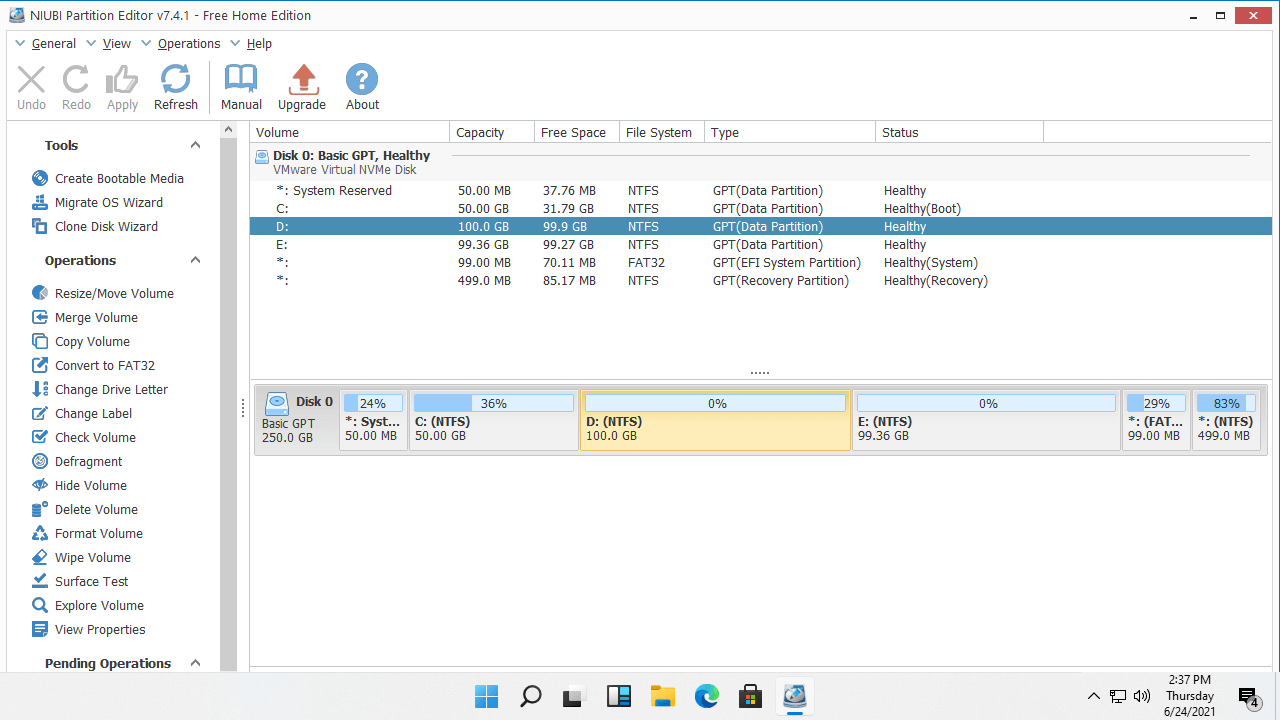
How to shrink the C drive in Windows 11/10/8/7 without losing data:
- Right-click the C: drive partition and select "Resize/Move Volume".
- Drag the right border leftward in the pop-up window, then Unallocated space will be created on the right.
- Click "Apply" on the top left to take effect.
If you want to make Unallocated space on the left of the C drive, drag the left border rightward in step 2.
After shrinking the C: drive, you can create new volumes or add the Unallocated space to other partitions to increase their free space. Watch the video to see how to shrink drive C in Windows 11 to create new volumes:
Follow the steps in the video if you want to extend the EFI or Recovery partition by shrinking the C drive.
Besides shrinking a volume in Windows 11/10/8/7/Vista/XP, this free partition software helps you clone disk partitions to back up or migrate systems and data, convert disk partition types, defrag, hide, wipe partitions, scan for bad sectors, and much more.
 © 2009 - NIUBI Technology All Rights Reserved. |