
If there is only a C drive on the system disk and you save everything to it, there will be two major problems: your computer will run slower and slower, and it will be difficult to find the files you need. You had better create more partitions in your Windows 11 computer. For example, use the C drive for the operating system and the D (or E) drive for programs. If your SSD is large enough, you can create a third partition to save files that should be loaded quickly. To create a new partition in a Windows 11 laptop or desktop, you can use the native Disk Management tool or free partition software. This article introduces how to create a partition in a Windows 11 computer using both kinds of tools.
How to Create Partitions in Windows 11 Without Any Software
Because the size of a hard disk is fixed, if you want to make more partitions in a Windows 11 computer, you must delete or shrink an existing partition to get "Unallocated" space. To create a new partition in a Windows 11 laptop, desktop, or tablet, the native Disk Management tool has the ability to shrink a partition and make Unallocated space without losing data. However, compared to disk partition software, it has some limitations, which will be explained in the next section.
How to create a partition in Windows 11 Disk Management without software:
- Right-click the Windows logo on the taskbar and then click Disk Management.
- Right-click the C: drive (or another large partition) and select the "Shrink Volume" option.
- Enter an amount of space (1024MB = 1GB) and then click Shrink. Unallocated space will be created on the right side of the C drive.
- Right-click this Unallocated space and select the "New Simple Volume" option. Follow the wizard.
- If you want to create more partitions in your Windows 11 computer, do not use all the Unallocated space; enter a smaller amount instead.
Limitations to creating a partition in Windows 11 with Disk Management:
- It cannot shrink the C drive beyond the point where unmovable files are located. That means it can only shrink a little space even if there is plenty of free space in the C drive.
- It can only shrink a partition leftward and create a new volume on the right.
- There are very few options when you create a new partition with Windows 11 Disk Management.
- It can only shrink NTFS partitions. If you want to shrink a FAT32 partition to create a new volume, Disk Management is useless.
To create a volume in a Windows 11 computer, NIUBI Partition Editor is a better choice because it offers more options. It provides a free edition for Windows 11/10/8/7/Vista/XP home computer users, which is fully functional and 100% clean.
How to Create a New Partition in Windows 11 with a Free Partition Editor
Compared to Disk Management, NIUBI Partition Editor has more advantages when creating a volume in a Windows 11 computer:
- It is able to shrink a partition to its minimum size if you want, because it can move those "unmovable" files.
- It is able to shrink a partition and create a new volume on either the left or right side.
- You just need to click, drag, and drop on the disk map to shrink and create volumes.
- It can shrink and create both NTFS and FAT32 partitions.
- It provides much more options when creating a new volume.
How to create a new volume in Windows 11 with a free partition editor:
- Download the NIUBI free edition, right-click any NTFS or FAT32 partition, and select the "Resize/Move Volume" option.
- Drag either border toward the other one in the pop-up window. If you drag the left border rightward, Unallocated space is created on the left.
- Right-click this Unallocated space and select the "Create Volume" option. There are many options in the pop-up window. You can add a volume label, select a drive letter, file system, and cluster size. You can also specify the partition size and location.
![]()
- Click Apply on the top left to take effect.
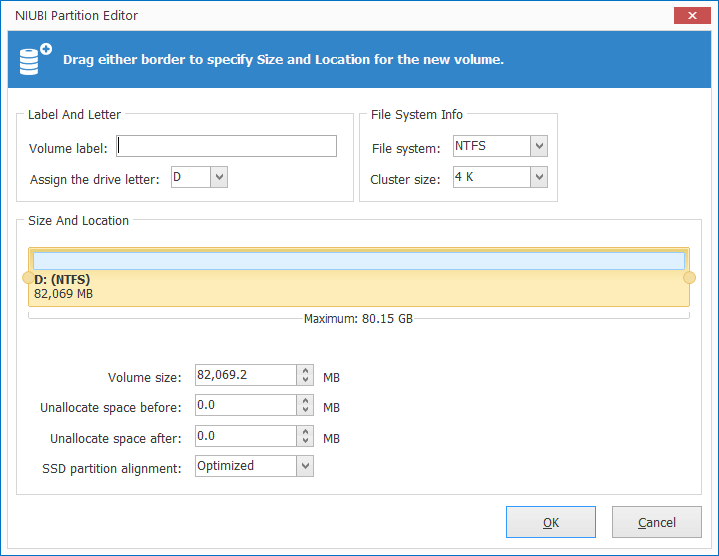
Tips: If you want to create several partitions with Unallocated space, you can drag either border in the middle or enter an amount in "Volume size" at the bottom.
Watch the video to see how to create a partition in a Windows 11 computer:
Besides creating new partitions in a Windows 11/10/8/7/Vista/XP computer, this free partition manager helps you perform many other advanced disk partition management operations, such as shrinking, extending, merging, moving, converting, defragging, hiding, and wiping partitions, as well as scanning for bad sectors. Compared to other tools, it features Virtual Mode, Cancel-at-will, 1-Second Rollback, and Hot Clone technologies to protect your system and data.
 © 2009 - NIUBI Technology All Rights Reserved. |