
After running a Windows 11 computer for a period of time, the system C drive gets full. If you install all programs on the C drive, this partition will become full very quickly. You had better install programs on another partition and change the default output path to a larger partition. What should you do if the C drive is already full? Nobody wants to recreate partitions and reinstall the operating system and all programs. Many people ask whether it is possible to increase C drive space in Windows 11 without losing data and programs. The answer is yes. This article introduces how to increase C drive free space in Windows 11 using the native tool and free partition software.
How to Increase C Drive Space in Windows 11 with Disk Management
As in previous Windows 10, Windows 11 has the ability to change partition size without losing data (in most cases). If you do not want to use any third-party software, you can try this native tool. However, you must delete the adjacent partition (such as D:) on the right in advance. If you can delete the adjacent partition, follow the steps below. Otherwise, jump to the next section.
Steps to increase C drive free space in Windows 11 without software:
- Right-click the Windows logo on the taskbar and click Disk Management.
- Right-click the contiguous partition D and select Delete Volume, then its disk space will be changed to "Unallocated".
- Right-click the C: drive, select the Extend Volume option, and follow the pop-up "Extend Volume Wizard".
If you want to enlarge the C drive by shrinking D or another partition, Disk Management cannot help you. Learn why you cannot extend the C drive in Windows 11 via Disk Management.
3 Ways to Extend the C Drive in Windows 11 with a Free Partition Editor
To increase C drive space in a Windows 11 laptop, desktop, or tablet, third-party software is a better choice, because you do not have to delete any partition. With NIUBI Partition Editor, you can make Unallocated space on the left when shrinking the D drive, and then the C drive can be extended easily. Better than other tools, NIUBI Partition Editor has Virtual Mode, unique 1-Second Rollback, Cancel-at-will, and Hot Clone technologies to protect your system and data. Because of its special file-moving algorithm, it is 30% to 300% faster. For Windows 11/10/8/7/Vista/XP home computer users, it has a free edition that is 100% clean without any bundles.
Download this tool, and you will see all storage devices with their partition structures and other information on the main window.
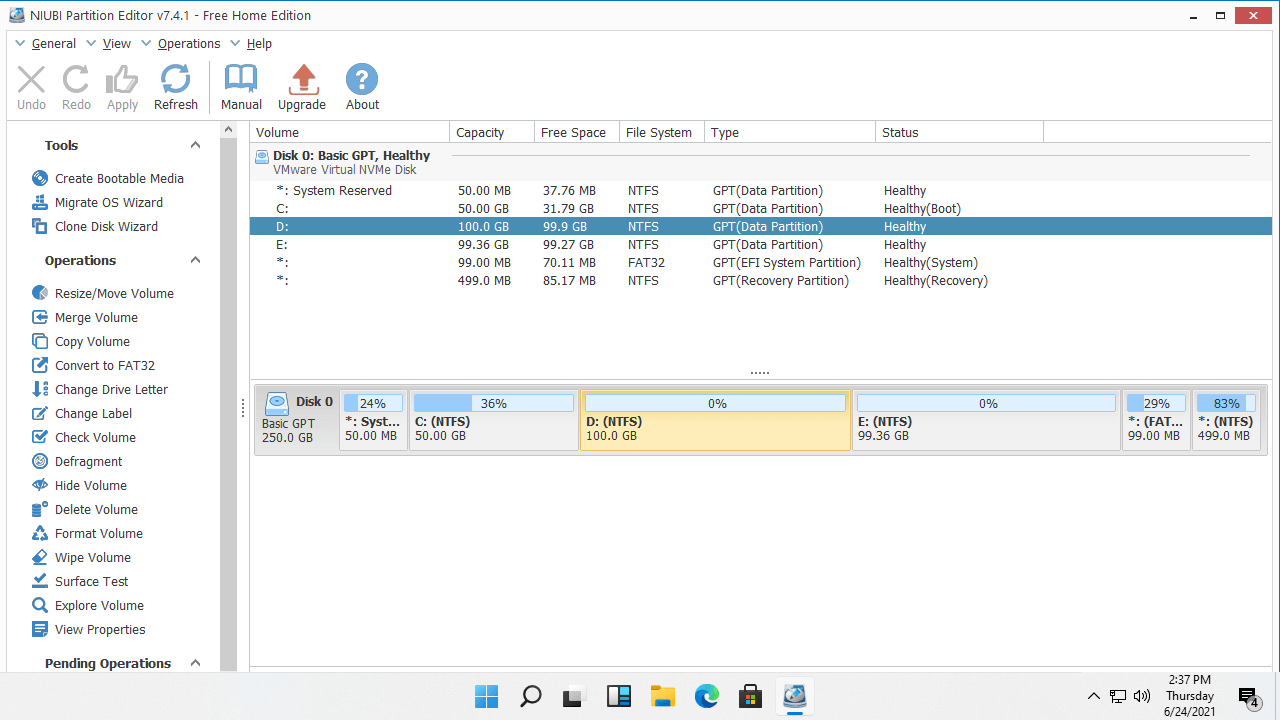
To increase the size of the C drive in a Windows 11 computer, there are 3 ways. Follow the corresponding method according to your own disk partition configuration.
Method 1 - Increase C Drive Free Space From D (Adjacent Partition)
In most Windows 11/10 computers, there is plenty of free space in another partition on the same disk. You can shrink the adjacent partition and make Unallocated space on the left. When there is contiguous Unallocated space, the C drive can be extended fast and easily.
How to increase C drive free space in Windows 11 without losing data:
- Right-click the D: drive and select "Resize/Move Volume". In the pop-up window, drag the left border rightward, or enter an amount in the box for "Unallocated space before".
![Shrink partition D]()
- Right-click the C: drive and select the "Resize/Move Volume" option again, then drag the right border rightward to combine this Unallocated space.
![Extend C drive]()
- Click Apply on the top left to take effect. (Real disk partitions will not be changed until you click Apply to confirm.)


Tips: The drive letter of the adjacent partition in your computer may be different.
Method 2 - Extend the C Drive with E (Non-adjacent Partition)
If there is not enough free space in the contiguous partition D, you can shrink any non-adjacent partitions on the same disk. The method is similar, except that there is an additional step to move the Unallocated space to the left before merging it into the C drive.
How to increase C drive space in Windows 11 from E (non-adjacent volume):
- Right-click the non-adjacent partition E and select "Resize/Move Volume", then drag the left border rightward to make Unallocated space on the left.
- Right-click the middle partition D and select "Resize/Move Volume", then drag the middle of the D drive rightward to move the Unallocated space to the left.
- Extend the C drive with this Unallocated space (the same as step 2 above).
- Remember to click Apply to execute.
Method 3 - Increase C Drive Size with Another Disk
In a few computers, there is no available free space on the same disk. In that case, no software can extend the C drive by adding space from a separate disk. Instead, you can clone this disk to a larger one and extend the C drive with extra disk space.
How to increase C drive with another partition:
How to increase C drive with another disk:
Besides shrinking partitions and extending the C drive in a Windows 11/10/8/7/Vista/XP computer, NIUBI Partition Editor helps you perform many other disk/partition management operations, such as creating, deleting, formatting, merging, moving, converting, defragging, hiding, wiping partitions, and scanning for bad sectors.
 © 2009 - NIUBI Technology All Rights Reserved. |