
Compared to a GPT disk, an MBR disk has some limitations and disadvantages. Among them all, the most common issue caused by the MBR partition table is that you cannot create more partitions if you have already created 4 primary partitions. In that case, you need to convert 1 or more primary partitions to logical.
To do this, Windows native Disk Management cannot help you, so you need third-party disk partition software. This article introduces how to convert a primary partition to logical without losing data.
About Primary and Logical Partitions
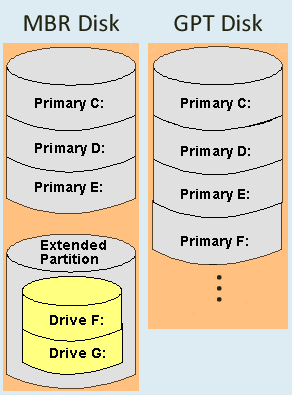
A Primary partition can be created on both MBR and GPT style disks, and it works as an independent unit.
On an MBR disk, every primary partition has an entry in the Master Boot Record, and there is a maximum of 4 entries. Thus, you can create a maximum of 4 primary partitions on an MBR hard disk. Better than an MBR style disk, a GPT disk can have up to 128 primary partitions.
A Logical partition can only be created on an MBR disk; in addition, it can only be created within the Extended partition. If you want to create more than 4 partitions, one of the entries in the Master Boot Record must be assigned to the Extended partition. That means, on an MBR disk, you can create a maximum of 4 primary partitions, or 3 primary partitions plus an Extended partition. The Extended partition works like a container, and you can create many logical drives in it.
Primary and Extended partitions are independent units; their disk space will be converted to "Unallocated" after deleting. Logical drives are part of the Extended partition; their disk space will be converted to "Free" after deleting. In Windows Disk Management, Unallocated space cannot be extended into any logical drive, and Free space cannot be extended into any primary partition.
Tips Before Converting a Primary Partition to Logical
- There is no difference when changing a primary partition to logical, regardless of whether you use any type of physical hard disk, SSD, hardware RAID array, or VMware/Hyper-V virtual disk.
- The System Reserved partition, system C: drive, and small OEM partitions are primary in general; these types of partitions cannot be converted to logical drives.
- To convert a primary partition to logical for a Windows 11, 10, 8, 7, Vista, or XP home computer, there is a free converter. But for Windows servers, you need the commercial version.
How to Convert/Change a Primary Partition to Logical
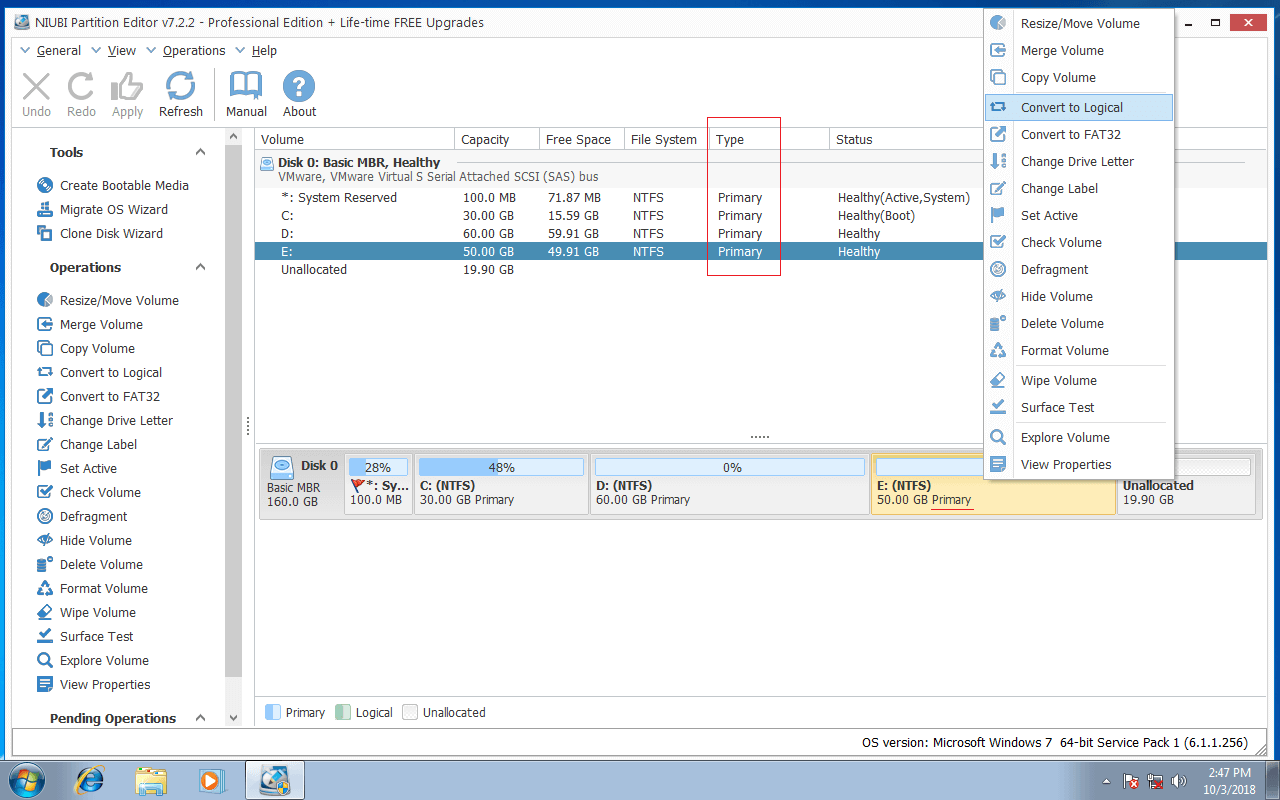
Download NIUBI Partition Editor, and you will see all disks with their partition structures and other information on the right. Available operations for a selected disk or partition are listed on the left and can also be accessed by right-clicking.
If there are 4 primary partitions on a disk, right-click the primary partition that you want to convert and select "Convert to Logical".
Click OK to confirm.
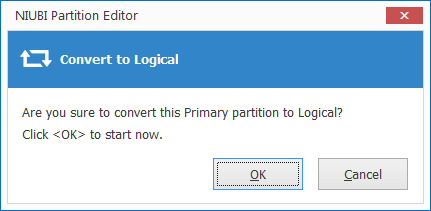
Then there will be a pending operation created on the bottom left. Click Apply on the top left to confirm and execute. Within several seconds, this primary partition will be converted to logical.
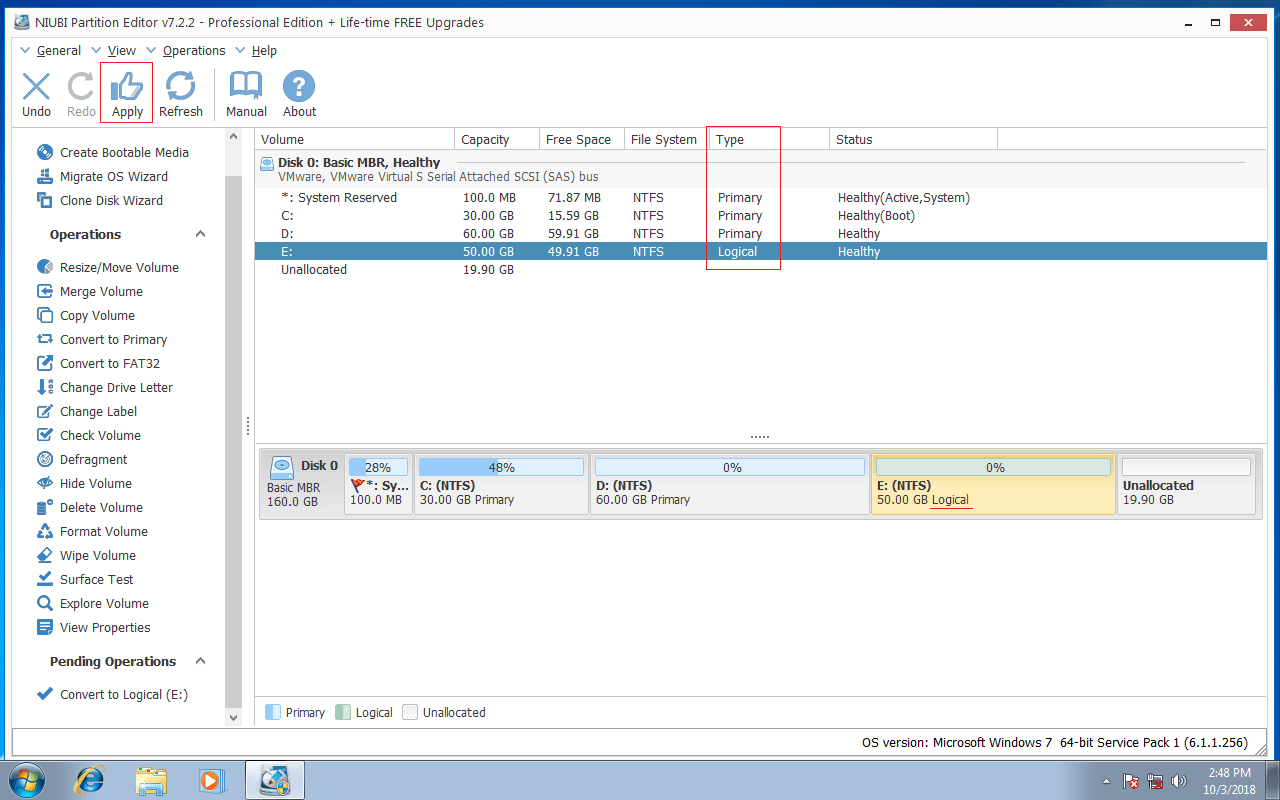
To avoid incorrect operations, NIUBI is designed to work in its own virtual mode. Real disk partitions will not be modified until you click Apply to confirm. If you did something wrong, simply click Undo to cancel the pending operations.
Watch the video to see how to convert a primary partition to logical without losing data:
Besides converting a partition from primary to logical, NIUBI Partition Editor helps you convert a disk from MBR to GPT, and convert an NTFS partition to FAT32 without losing data. It also helps you shrink, extend, move, merge, defrag, copy, hide, wipe, scan partitions, and much more.
 © 2009 - NIUBI Technology All Rights Reserved. |